
3D in a WeChat Mini Program: Three Routes and Their Trade-offs
Once the web version of a 3D product showcase is settled, the next question often comes from the boss: can the mini program show it too? It can. A mini program is not a browser though, and copying the web setup usually ends with slow loading or a blank screen. Three routes work in practice, each with its own cost.
How the Mini Program Environment Differs from the Web
WeChat mini programs have no full browser runtime. DOM and most browser APIs are unavailable, so 3D rendering goes through one of two channels: wrap a normal web page inside a web-view component, or draw with WebGL on a canvas component. Model formats, interaction design and memory budget all follow from that choice.
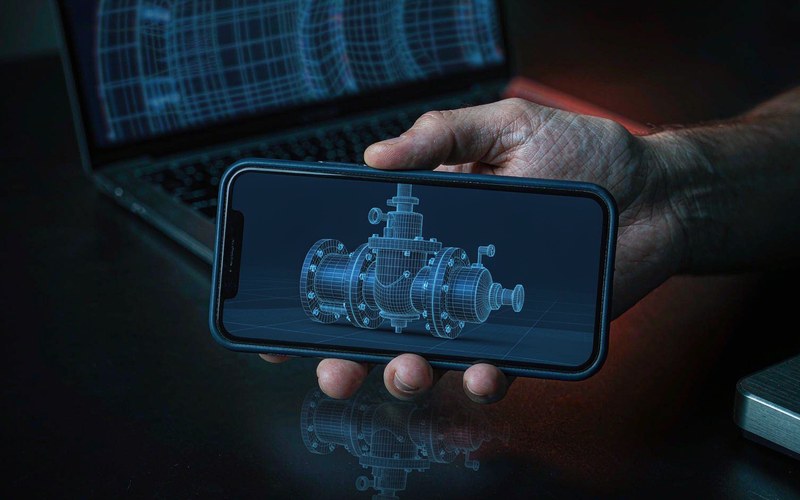
Route One: web-view Wrapping the Web 3D
If the web 3D already exists, say a three.js configurator, one web-view page wraps it and the mini program opens it directly. Development effort is minimal, and web side updates ship without publishing a new mini program version.
The limits are real. Pages inside web-view cannot use mini program login state or payment. Individual (personal) accounts cannot use web-view at all. Debugging crosses two layers. This route fits a clear scenario: the 3D part is for viewing, with little interaction with other mini program features.
Route Two: Native Canvas with WebGL
Adaptation libraries such as threejs-miniprogram run three.js on a mini program canvas, so interactions, lighting and materials all work. The 3D scene lives inside the mini program itself: rotating a part can lead straight to an inquiry form, and the experience stays connected.
The cost is engineering. Library versions need watching, loaders and controls need verification one by one, and device adaptation requires real device testing. Low end Android phones run tight on memory, and an oversized model turns the screen blank. When rendering fails, run through the web side compatibility checklist first (web 3D blank screen checks and fallbacks), since many causes are shared.
Route Three: Shrink the Model First
Whichever route you take, model size is the first hurdle. A 5 MB GLB fine on the web often needs to come down to 1 or 2 MB inside a mini program. Mesh reduction, texture compression and Draco encoding follow the same playbook as model optimization for the web (five ways to slim down a 3D model), only with a tighter budget. Compress first, then talk rendering. Do not reverse the order.
How to Choose
Work through this order when unsure. First confirm whether the account type allows web-view. Then look at the role of 3D in the mini program: pure viewing favors route one for its low cost, while tie-ins with forms, membership or quotes call for route two. Route three applies either way. Keep one more thing in mind: 3D in a mini program is a module inside a bigger decision between template, SaaS and custom development (mini program development options compared). Settle the delivery model first, then the 3D plan.
Related Q&A
Will a 3D model inside a mini program cause review problems
Normal product showcase 3D falls under standard tool or ecommerce categories and usually passes review. Trouble comes from web-view pointing at a domain that is unregistered or mismatched with the account, so prepare the business domain whitelist early.
The web 3D configurator is already built. Can the mini program reuse it directly
Through web-view, yes, with minimal effort. But mini program login state and payment cannot reach into the web-view, and personal accounts cannot use web-view at all. Deep integration requires the native canvas route.
Mini program 3D loads slowly. Where to start
Shrink the model first, then check devices. The memory ceiling on low end Android phones is the usual bottleneck, and mesh reduction plus texture compression solves most cases. If it still struggles, load a simplified first frame model so users see something spinning, then swap in the full version.